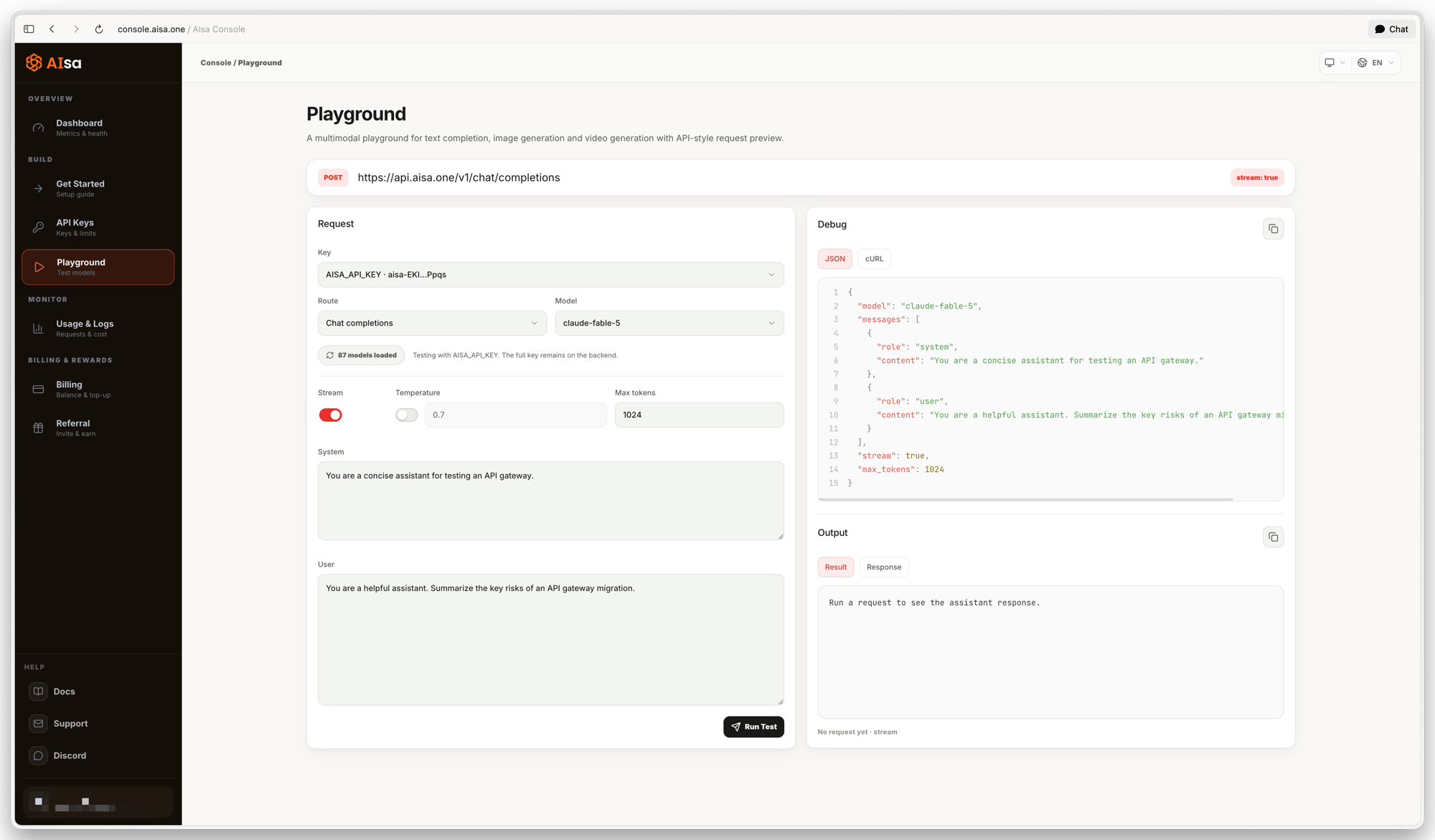
The Playground is an interactive environment for testing models available through AIsa before integrating them into your application. It sends real requests through the same relay endpoints your production code uses, and shows you the exact request body and raw response alongside the result. AIsa Playground showing the request panel on the left and the JSON request preview plus output panel on the right Open it at Console → Playground. Requests are sent with one of your own API keys, so you need at least one enabled key before running a test. New accounts receive free credits that the Playground can spend immediately (the exact amount and eligibility depend on the promotion running at the time — see the official announcements for current terms).

Endpoint Bar

The bar above the panels shows the exact endpoint the current configuration targets, for example POST https://api.aisa.one/v1/chat/completions, along with a stream: true / stream: false chip that reflects the Stream toggle. The endpoint changes when you change the Route.

Request Panel

The left panel defines the request. Playground request panel with Key, Route, Model selectors, Stream, Temperature and Max tokens controls, and System and User prompt fields

Key

The Key selector chooses which of your API keys authenticates the request. Only enabled keys are listed, and each entry shows the key name plus a masked prefix and suffix. The full key value is never sent to the browser — the request is signed on the backend. Usage is attributed to the selected key, so you can isolate Playground traffic from application traffic by testing with a dedicated key. If you have no enabled keys, create one first — see API Keys.

Route

The Route selector chooses the API surface used for the request:
  • Chat completionsPOST /v1/chat/completions, the OpenAI-compatible route. The system prompt is sent as a system message inside messages.
  • MessagesPOST /v1/messages, the Anthropic-compatible route. The system prompt is sent as a top-level system field.
Changing the route reloads the model list, because the two routes expose different sets of models.

Model

The Model selector lists every model the selected key can reach on the current route. The counter below the selectors shows how many models were loaded, and the refresh button re-fetches the list. Switching models does not change the request format — only the model identifier changes. If your account is still on trial credits and the selected model requires a paid balance, the Playground shows a top-up notice and disables Run Test for that model. Pick another model or add credits to continue.

Generation Parameters

Stream

Stream controls whether the response is delivered incrementally as server-sent events. When enabled, output appears token by token in the Output panel and "stream": true is included in the request body.

Temperature

Temperature is opt-in: the toggle next to it decides whether temperature is included in the request at all. When the toggle is off, the parameter is omitted and the model’s own default applies. When enabled, lower values produce more deterministic output and higher values increase variation. Accepted range is 0–2.

Max Tokens

Max tokens sets the upper bound on generated tokens, controlling response length and cost. It is always included in the request.

System and User

The System field carries instructions that shape the model’s behavior; the User field carries the prompt itself. Both are plain text areas and both update the request preview as you type. Run Test sends the request. While a request is in flight the button becomes Stop, which aborts the connection immediately.

Debug Panel

The right panel shows exactly what AIsa sends, before you run anything. Debug panel showing the JSON request body with syntax highlighting, and the Output panel below it with Result and Response tabs
  • JSON — the request body as it will be posted, with line numbers
  • cURL — the same request as a copy-and-paste terminal command using $AISA_API_KEY
The copy button in the panel header copies whichever tab is active. The cURL command is the fastest way to move a validated configuration from the Playground into a script or a teammate’s terminal.
The generated command wraps the JSON body in single quotes. If your System or User prompt contains a single quote ('), escape it before running the command in a shell, or the body will be truncated.

Output Panel

Below the request preview, the Output panel shows the response.
  • Result — the extracted assistant text, streamed live when Stream is on
  • Response — the response payload: the full JSON body for a non-streamed request, or, when streaming, the data payload of each SSE event on its own line (the data: prefixes and other event fields are stripped)
The footer line reports request latency in milliseconds, the x-request-id returned by the gateway, and whether the call was streamed. Use that request ID when correlating a test with the Usage Logs page or when contacting support. Errors are shown inline, with the raw error body available under the Response tab.

Usage and Billing

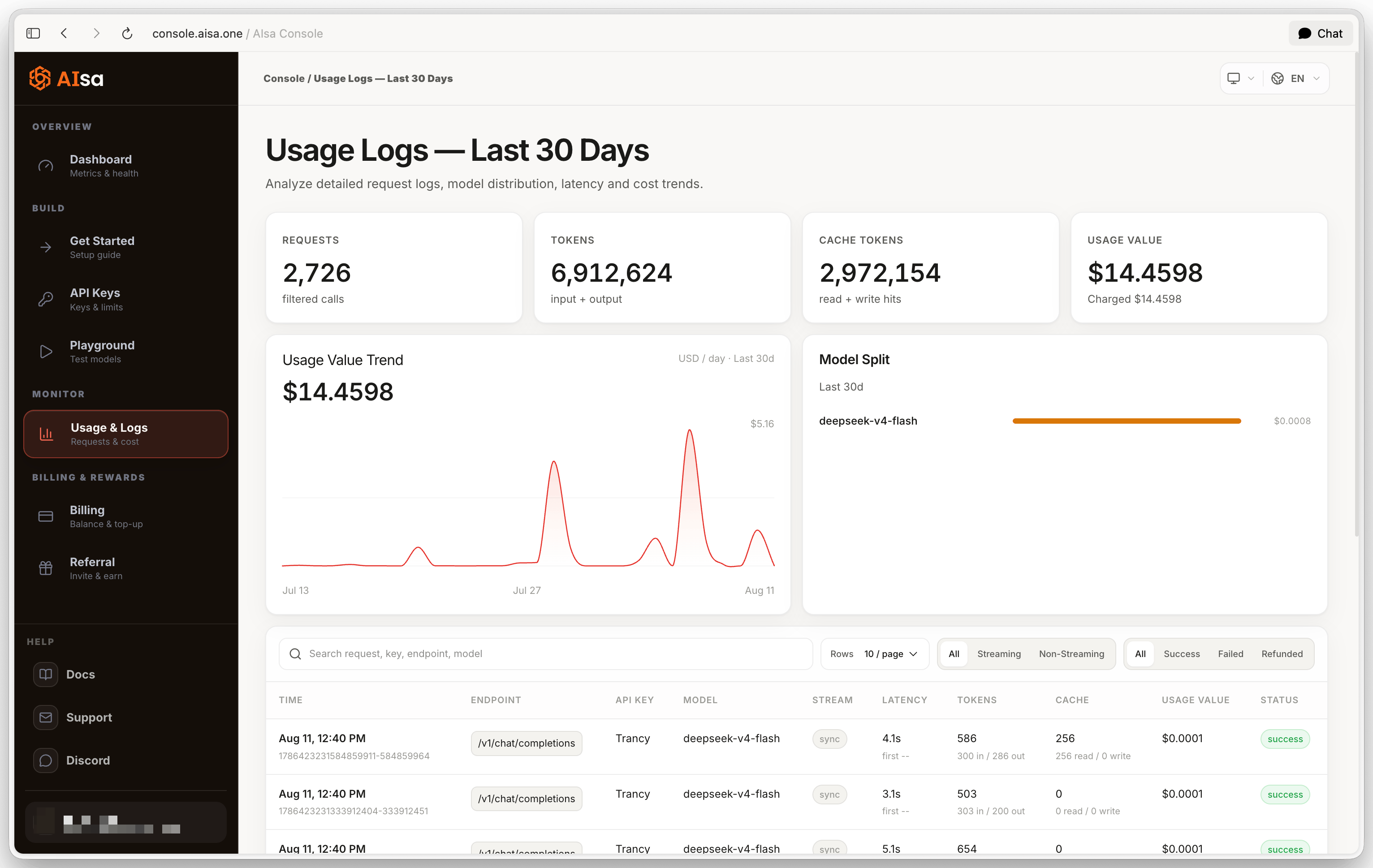
All Playground requests count toward usage and billing exactly like API requests, and appear in your logs and usage charts under the key you selected.

What the Playground Is Best Used For

  • Comparing outputs across models without changing code
  • Checking that a model is reachable with a specific key
  • Validating the request body before writing the integration
  • Copying a working cURL command as a starting point
  • Debugging errors with the raw response and request ID in one place

Chat Completions API

Ship the same request via code once you’ve validated it here.

Authentication

Create and manage the API key the Playground authenticates with.

Model Catalog

Browse current model IDs, context windows, endpoints, capabilities, and billing notes.